Getting started
Your first lot in 5 minutes
This guide walks you through everything you need to set up your first parking lot on Park Graph — from creating your account to printing your QR code and collecting your first payment.
Park Graph is deliberately hardware-free. There are no meters to buy, no kiosks to wire, and no gate arms to maintain. Everything a driver needs lives behind a single QR code, and everything you need to run the lot lives in one operator dashboard. That means onboarding is mostly configuration, not installation — most operators are accepting their first payment the same afternoon they sign up. Before you begin, it helps to have three things handy: the address and space count of your lot, the hourly rate you want to charge, and access to the bank account where you want payouts deposited.
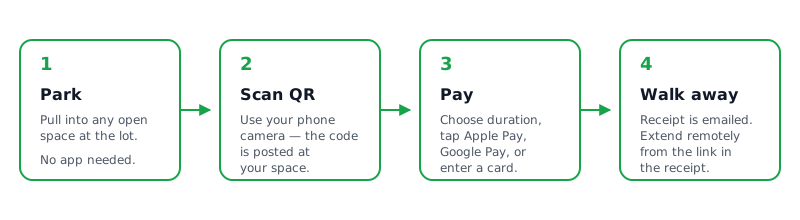
Get started in 3 steps
From sign-up to first payment in under 10 minutes.
Create your account
Sign up with your email or Google account. No credit card required for the free Starter plan. You will be asked for your name, company name, and timezone.
Connect Stripe
Park Graph uses Stripe Connect for payment processing. Click "Connect Stripe" in your dashboard to set up or link your Stripe Express account. This is where driver payments will be deposited after Park Graph's platform fee is deducted.
Add your first lot
Enter your lot name, address, number of spaces, and hourly rate. Park Graph geocodes the address automatically and generates a unique slug and QR short code for your lot.
Configure pricing
Set your base hourly rate, daily maximum, and any surge pricing rules. Starter plans use fixed hourly rates. Pro and Enterprise plans can enable dynamic pricing with occupancy-based surge, event surge, and time-of-day adjustments.
Print and post your QR code
Download your branded QR code from the dashboard. Print it on any standard printer — we recommend laminating for weather protection. Post it at your lot entrance, on parking signs, or anywhere drivers can see it.
Start collecting payments
That is it. When a driver scans your QR code, they see your lot page with the current rate and can pay instantly. Revenue appears in your dashboard in real-time, and payouts are deposited to your bank within 2 business days.
After your first payment
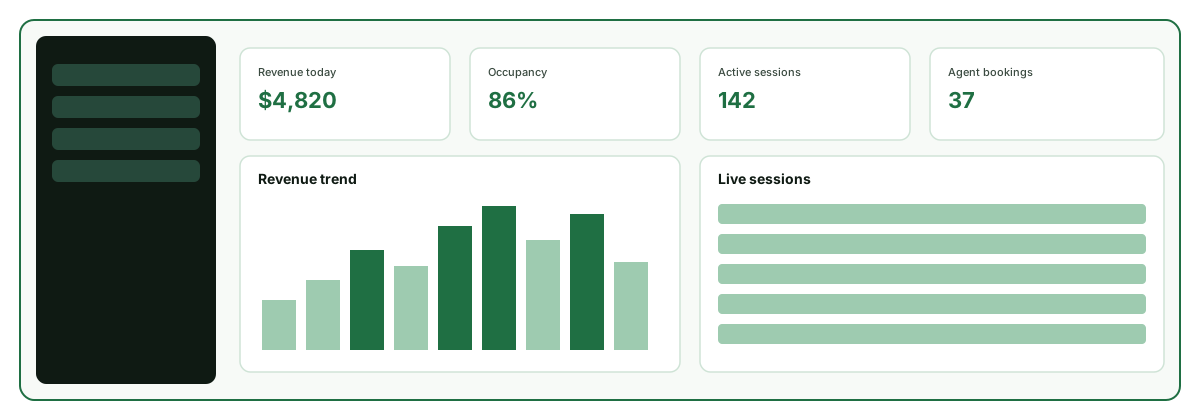
Once your QR code is posted and the first session lands, a few follow-up steps help you get the most out of the platform. Review your analytics to watch occupancy and revenue per space build over the first week. If you are on a Pro or Enterprise plan, enable dynamic pricing so your rates respond automatically to occupancy, time of day, and nearby events instead of staying flat. You can also upload a custom logo so your QR codes and driver-facing pages carry your brand.
When you are ready to scale, the same dashboard manages a whole portfolio: add more lots, each with its own address, rate, and rules, and monitor them side by side. Operators who want to make their inventory discoverable to AI assistants can expose lots through Park Graph's public API, MCP server, and ChatGPT Actions, so a driver asking an assistant for nearby parking can find — and book — your spaces. For step-by-step help with any of these, head to the Tutorials hub or search the Help Center.
Ready to get started?
Create your free account and have your first lot live in 5 minutes.